
I have audited hundreds of browser extensions over the last decade, and one reality stands out: a harmless-looking color picker or coupon finder can quietly steal session cookies, capture credit card numbers, or inject adware into every site you visit.
Learning how to tell if a browser extension is safe requires moving beyond star ratings and download counts. High install counts offer zero protection if a developer quietly sells their popular add-on to a predatory data broker. You must evaluate permission scopes, developer provenance, and runtime behavior before adding any code directly into your browser’s execution path.
The 10-Second Triage: Quick Security Inspection Matrix
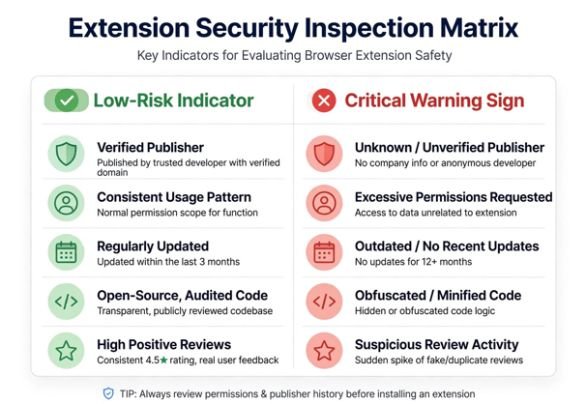
Before downloading any add-on from the Chrome Web Store, Edge Add-ons, or Firefox Add-ons, run through this inspection matrix. It separates well-engineered tools from predatory data scrapers immediately.
| Evaluation Metric | Low-Risk Indicator | Critical Warning Sign |
| Permission Scope | Limited to activeTab or explicit, single-domain origins. | Demands “Read and change all your data on all websites you visit.” |
| Developer Contact | Custom domain with an active HTTPS site, clear security policy, and verified identity badge. | Generic webmail address (@gmail.com or @outlook.com) with no published domain or policy. |
| Update Cadence | Stable, frequent maintenance within the last 6 to 12 months. | Dormant for three years, followed by an unannounced, rapid update under a new publisher. |
| Source Availability | Public Git repository with open peer review and tagged releases. | Obfuscated proprietary scripts with unminified external API calls. |
| Review Distribution | Steady, multi-year reviews discussing specific features and technical bugs. | Thousands of one-sentence 5-star ratings posted in short clusters, offset by recent 1-star theft warnings. |
Technical Vetting: Decode Permissions Before Clicking Install
Browser extensions operate inside privileged security contexts. Unlike regular websites that run inside an isolated sandbox, extensions can intercept network traffic, alter Document Object Models (DOMs), and read local storage.
When you click “Add to Browser,” your browser presents an install dialog. Never click past this prompt without auditing the permission request against the tool’s actual utility.
[User Action] —> Install Prompt —> Intercept API Grants
│
┌───────────────────────┴───────────────────────┐
▼ ▼
Scoped Permissions Broad Permissions
(e.g., “Active Tab Only”) (“Read/Change Data on All Sites”)
│ │
▼ ▼
SAFE TO EVALUATE REJECT / RESTRICT
Dangerous API Calls Disguised as Convenience
Always evaluate requested permissions under the principle of least privilege, as outlined in the Mozilla Developer Network Permission Documentation.
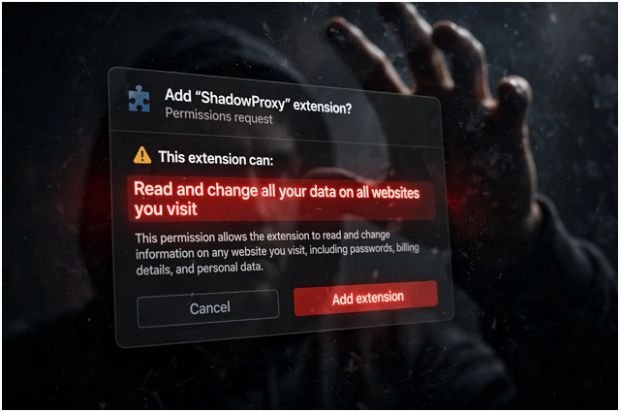
If a simple dark-mode toggle asks for permission to “Read and change all your data on all websites you visit,” walk away. That broad permission grants the extension access to inspect your bank balances, read password input fields, and log session tokens. Just as you learn whether are passkeys safer than passwords to shield authentication credentials, you must shield your active sessions from rogue extension code.
Watch out for these specific permissions:
- <all_urls> or *://*/*: Grants unrestricted script injection across every domain you browse.
- cookies: Allows the extension to read and copy session cookies, bypassing multi-factor authentication.
- webRequest / declarativeNetRequestFeedback: Enables traffic interception, header modification, and proxy rerouting.
- clipboardRead: Grants access to your clipboard, exposing passwords or cryptocurrency wallet addresses.
Enforcing Least Privilege with “On Click” Scoping
You do not have to accept an extension’s blanket demands. Both Chromium-based browsers (Chrome, Edge, Brave) and Firefox allow runtime permission controls.
Whenever I evaluate a new productivity tool, I install it and immediately open chrome://extensions. Under the extension’s details, locate Site Access and switch the setting from “On all sites” to “On click” or “On specific sites.”
This prevents background scripts from observing private banking tabs, healthcare portals, or administrative dashboards. The code executes only when you manually click the icon in your toolbar.
Developer Forensics: Spotting the “Silent Buyout” Trap
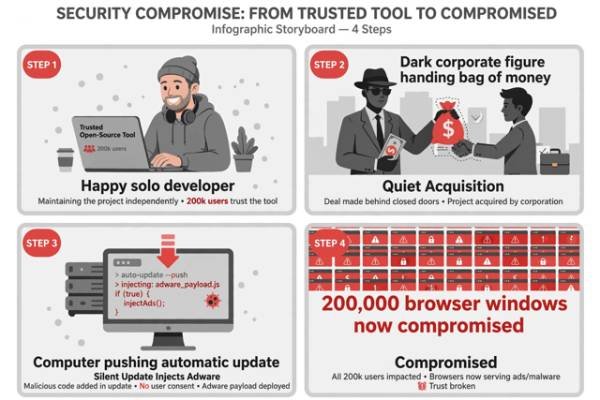
The most dangerous security vulnerability in the extension ecosystem is the “silent buyout.” A solo developer builds a stellar open-source utility, gains 200,000 active users, and loses interest in maintaining it. A shady marketing firm approaches them with an all-cash buyout offer. Once ownership transfers, the new owners push an automatic update that turns the extension into background adware or an info-stealer.
The Google Chrome Web Store Developer Program Policies prohibit malicious behavior, but automatic reviews do not catch subtle data exfiltration immediately.
[Trusted Open-Source Tool] ──(Quiet Acquisition)──> [Shady Marketing Entity]
│
▼
[Silent Automatic Update] <───(Injects Adware/Telemetry)──────┘
│
▼
[200,000 Compromised Browsers]
Checking Commit Histories and Domain Provenance
To protect yourself against hijacked software:
- Inspect the “Offered by” credit: Click the developer link on the store listing. Does it redirect to an established corporate entity, or does it point to an empty website registered last month?
- Audit the version changelog: Check the extension’s release notes. If an add-on saw no updates between 2021 and 2025, and suddenly received three updates in two weeks, examine recent feedback closely.
- Look for public repositories: Established open-source projects hosted on GitHub or GitLab allow independent developers to spot malicious commits before they reach store builds.
- Cross-reference cybersecurity forums: Search Reddit’s /r/cybersecurity or the Electronic Frontier Foundation for the tool’s name alongside terms like malware, telemetry, or scandal.
Evaluating Reviews and User Counts Without Getting Fooled
High install numbers are a popular indicator of reliability, but cybercriminals regularly buy fake Web Store accounts with inflated user metrics.
Do not rely on the aggregate star rating. A 4.8-star average often hides recent compromises. Instead, change the review filter from “Most Helpful” to “Most Recent.”
Look for these recurring community flags:
- Sudden complaints about search engine redirects (e.g., searches rerouting through suspicious Bing affiliate URLs).
- Reports of mysterious affiliate tags inserted into Amazon or eBay links.
- Reviews noting high CPU utilization or sudden battery drain.
- Repetitive five-star ratings posted on the exact same afternoon using broken, generic English.
Behavioral Auditing: Signs an Installed Add-On Has Gone Rogue
Extensions update silently in the background without user confirmation unless a major permission tier changes. You must monitor runtime performance to catch bad actors.
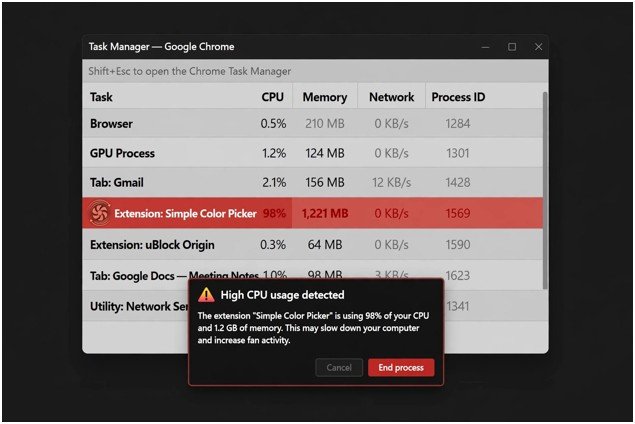
Open your browser’s built-in Task Manager (Shift + Esc on Chrome and Edge). Review the active processes. If an extension with no active background duties consumes significant memory or processor cycles, it may be running an unauthorized cryptocurrency miner or serving as a residential proxy.
| Symptom | Underlying Mechanism | Immediate Action Required |
| Search Engine Hijack | Extension overrides the default search_provider manifest setting. | Remove extension; clear browser cache and reset search engines. |
| Injected Banners | Content scripts alter page DOMs to insert affiliate banners. | Inspect page elements to trace the script container; delete extension. |
| High CPU/Fan Noise | Background scripts execute WebAssembly-based crypto mining routines. | Check Shift + Esc Task Manager; terminate process and uninstall. |
| Random Auth Logouts | Extension clears cookies or alters request headers across domains. | Revoke all permissions, wipe browser cookies, and reset passwords. |
Just as you take deliberate measures to secure smart home devices from hackers by segmenting local networks, you must isolate your browser environment. Audit your extension list monthly and remove anything you have not used in thirty days.
Frequently Asked Questions About Extension Security
1. Does the Chrome Web Store scan every extension for malware?
Yes, Google conducts automated security and policy checks, but sophisticated obfuscation techniques and post-installation remote code downloads can occasionally bypass initial screening.
2. Can a safe extension become malicious after an update?
Yes, silent developer buyouts or compromised developer accounts can allow threat actors to push malicious code directly to existing users via automated background updates.
3. What is the most dangerous permission an extension can request?
The permission allowing an extension to “Read and change all your data on all websites you visit” is the most dangerous because it provides access to sensitive forms, credentials, and cookies.
4. Are open-source extensions always safer than closed-source options?
Open-source extensions offer significantly better transparency because their source code is publicly auditable, though safety still depends on whether the compiled store build matches the public repository.
Ditch the Digital Baggage: Your Browser Hardening Routine
Every browser extension you install expands your attack surface. Convenience is tempting, but giving third-party code unfettered access to your digital life requires strict boundaries.
Review the tools you currently run. Remove abandoned extensions, restrict the survivors to “On Click” access, and verify the publisher behind every utility.
For critical tasks like online banking or sensitive account management, open a dedicated, clean browser profile with zero active extensions.
Staying secure takes less than five minutes of maintenance—protect your data before a compromised add-on makes the decision for you.









One comment on “How to Tell If a Browser Extension Is Safe?”