
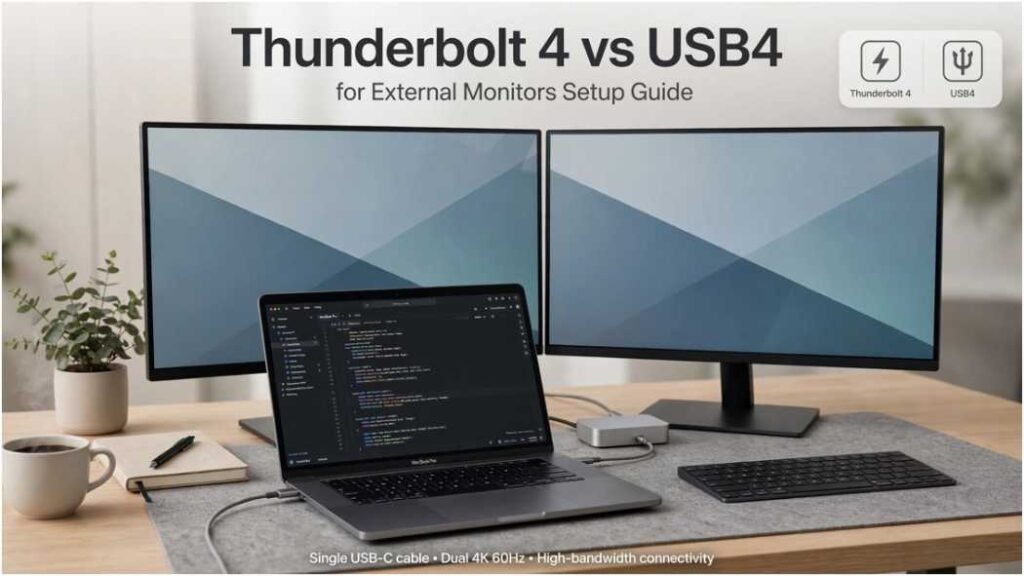
I learned the hard way that identical oval Type-C ports do not deliver identical video outputs. When evaluating thunderbolt 4 vs usb4 for external monitors, the core challenge comes down to consistency. One standard guarantees high-resolution multi-screen stability right out of the box, while the other treats dual-display bandwidth as an optional manufacturer upgrade.
+————————————————————-+
| USB-C PHYSICAL PORT |
+——————————+——————————+
|
+———————-+———————-+
| |
v v
+——————————-+ +——————————-+
| THUNDERBOLT 4 | | USB4 |
+——————————-+ +——————————-+
| • Mandated 40 Gbps | | • 20 or 40 Gbps variable |
| • Minimum Dual 4K @ 60Hz | | • Minimum Single display |
| • Mandated PCIe tunneling | | • Optional PCIe tunneling |
| • Full speed up to 2 meters | | • Passive drops past 1 meter |
| • Intel certified | | • USB-IF spec tiers |
+——————————-+ +——————————-+
If your daily workflow relies on color grading, high refresh rates, or multi-screen setups, picking the wrong port configuration leads directly to black screens and forced lower resolutions.
The Underlying Architecture: Guaranteed Ceilings vs. Variable Floors
Both standards share the USB Type-C connector and max out at a ceiling of 40 Gbps. The difference lies in their performance floors. Intel’s Thunderbolt 4 specification requires hardware certification with zero room for manufacturer compromises. If a laptop carries the Thunderbolt lightning badge, it must drive two 4K displays at 60Hz or a single 8K display at 60Hz.
The USB Implementers Forum (USB-IF) built USB4 around the Thunderbolt 3 protocol. However, USB-IF allows vendors to pick and choose features. A USB4 port only needs to support a single display with no mandatory resolution baseline. While USB4 can match Thunderbolt 4 point-for-point, laptop vendors often scale down the internal controllers to save cost and board space.
Bandwidth Allocation and DisplayPort Tunneling
Both protocols rely on protocol tunneling to share data across high-speed lanes. When you connect a screen, the system packages DisplayPort packets alongside standard PCIe and USB data. Thunderbolt 4 dynamically balances this pipeline while locking in a mandatory 32 Gbps allocation for PCIe storage and external peripherals.
When choosing your gear, understanding usb c hub vs docking station differences becomes critical because basic hubs lack the dedicated controller silicon required to demultiplex high-resolution video and peripheral traffic simultaneously.
Single vs. Dual Display Capabilities: Where USB4 Cuts Corners
In testing dual 4K monitors on mid-tier USB4 laptops, I found that many budget implementations fail to push 60Hz on both screens simultaneously without dropping color depth from 10-bit to 8-bit. Standard uncompressed 4K video at 60Hz demands roughly 12.54 Gbps of raw DisplayPort bandwidth per screen. Two screens consume over 25 Gbps before accounting for audio, USB data, or protocol overhead.
Display Stream Compression (DSC) Pipeline:
Raw 4K/60Hz HDR Signal (15.5 Gbps)
│
▼
[VESA DSC 1.2a Engine] ──> Compresses frame buffer ~3:1
│
▼
Tunneled Pipe (~5.2 Gbps) ──> Fits multiple displays over one link
Thunderbolt 4 guarantees the controller handles two discrete video streams natively over a single link. USB4 devices can leverage VESA Display Stream Compression (DSC) to squeeze high-resolution streams into tighter data lanes, but this works only if your monitor, cable, and host GPU all support the compression standard.
The macOS Multi-Stream Transport (MST) Roadblock
Platform operating systems handle multi-monitor streams very differently:
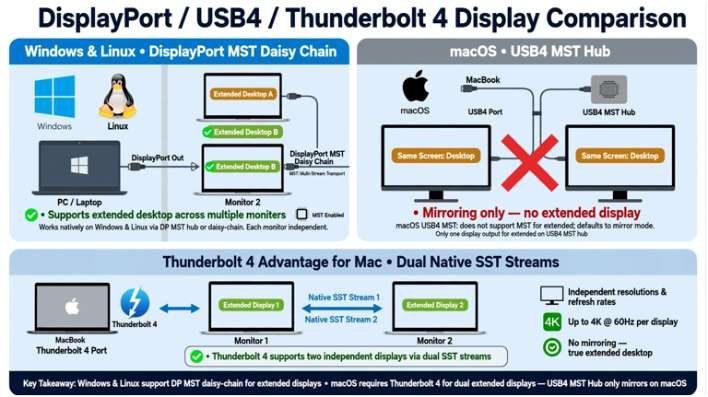
- Windows and Linux: Both systems support DisplayPort Multi-Stream Transport (MST). A USB4 port with MST can split a single DisplayPort pipeline across two daisy-chained monitors to create an extended desktop setup.
- macOS: Apple silicon does not support DisplayPort MST. If you plug a standard USB4 MST hub into a MacBook, both monitors will display identical, mirrored screens.
- The Thunderbolt Advantage for Mac: Thunderbolt 4 uses dual native DisplayPort streams (Single Stream Transport / SST) routed directly through the Intel or Apple controller. This architecture allows MacBooks to run two separate extended displays through a certified Thunderbolt dock without relying on MST.
Cable Length and Signal Attenuation Realities
Cable choice impacts video feeds much faster than external drives. If an external drive loses speed, a file transfer takes a few extra seconds; you might then debate whether to use an external ssd vs cloud storage for backups. But if a display cable loses bandwidth, the monitor flickers, drops refresh rate, or goes completely black.
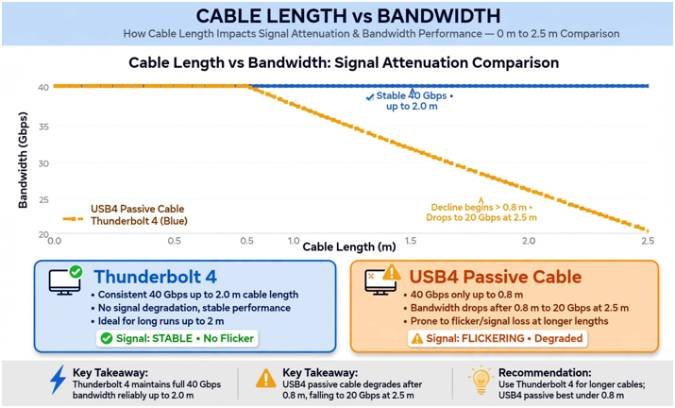
High-frequency signals degrade rapidly over copper. Thunderbolt 4 specifications require active or passive cables to maintain the full 40 Gbps bandwidth across lengths up to 2 meters.
In contrast, basic passive USB4 cables often experience packet degradation beyond 0.8 meters unless they integrate active retimer chips. A generic 2-meter USB4 cable frequently drops back to 20 Gbps. That drop instantly cuts your available bandwidth in half, breaking high-refresh 144Hz setups or killing your secondary monitor stream.
Technical Specifications Compared
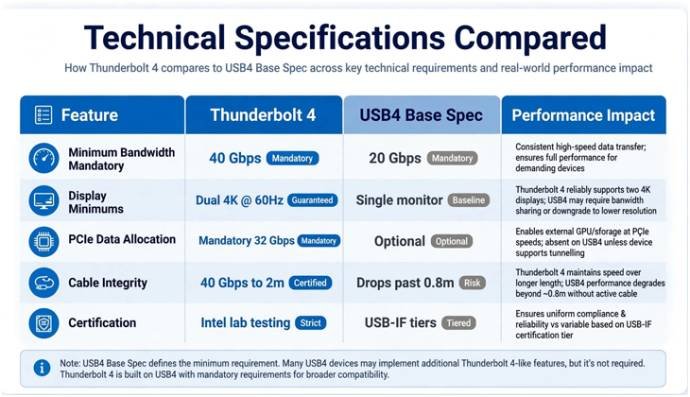
The following reference tables contrast real-world operational benchmarks against raw marketing numbers.
Core Protocol Standards
| Feature | Thunderbolt 4 | USB4 (Base Spec) | Performance Impact |
| Minimum Bandwidth | Mandatory 40 Gbps | 20 Gbps (40 Gbps optional) | Low-tier USB4 ports bottleneck high refresh rates. |
| Display Minimums | Dual 4K @ 60Hz or One 8K @ 60Hz | Single monitor (No set resolution) | USB4 requires checking laptop spec sheets. |
| PCIe Data Allocation | Mandatory 32 Gbps | Optional | Limits external GPUs and capture devices. |
| Cable Integrity | 40 Gbps guaranteed to 2m | Often drops past 0.8m–1m | Long desk runs require premium active cabling. |
| Certification | Strict Intel laboratory testing | USB-IF compliance tiers | TB4 eliminates multi-screen guesswork. |
Video Resolution & Refresh Rate Matrix
| Monitor Setup | Thunderbolt 4 Native | USB4 (40 Gbps + DSC) | USB4 (20 Gbps Base) |
| Single 4K @ 60Hz | Supported | Supported | Supported |
| Single 4K @ 144Hz | Supported (Via DP 1.4 / DSC) | Supported (Requires DSC) | Unsupported / Chroma subsampling |
| Dual 4K @ 60Hz Extended | Guaranteed native | Hardware dependent (MST only on Windows) | Unsupported |
| Single 8K @ 60Hz | Supported | Supported (DSC mandatory) | Unsupported |
Setup Verdict: Pick the Right Port
Buy a Thunderbolt 4 setup if you run two or more 4K monitors from a single port, work on a Mac, or need an extended display configuration through a single cable drop. The Intel certification prevents compatibility headaches.
Stick with USB4 if you drive a single 1440p or 4K monitor and keep cable runs under 1 meter. It saves money on peripheral hardware while delivering identical visual fidelity for single-screen desks. Before ordering any USB4 hardware for multi-screen use, check your laptop manual to confirm the port supports DisplayPort Alt Mode at 40 Gbps.
Frequently Asked Questions About Thunderbolt 4 and USB4 Displays
1. Can a USB4 port run two 4K monitors on a MacBook?
No, macOS lacks DisplayPort MST support, meaning dual displays on basic USB4 ports will mirror rather than extend.
2. Do I need an active cable for a Thunderbolt 4 monitor?
Passive Thunderbolt 4 cables maintain full 40 Gbps speeds up to 2 meters without needing active signal boosters.
3. Will a Thunderbolt 4 monitor work if plugged into a USB4 laptop port?
Yes, the monitor will display an image, but it falls back to the maximum bandwidth supported by the laptop’s USB-C port.
4. Does USB4 support 8K resolution on external displays?
Yes, USB4 can output 8K video at 60Hz if the host port supports 40 Gbps bandwidth and Display Stream Compression (DSC).









One comment on “Thunderbolt 4 vs USB4 for External Monitors: Setup Guide”