
I learned the real usb c hub vs docking station differences the hard way at my own desk. A portable hub ran hot, dropping an external drive in the middle of a massive file transfer. Both devices feature identical oval USB-C plugs, yet their internal architectures function completely differently. One is built as a portable adapter for quick on-the-go ports, while the other functions as an enterprise-grade desktop expansion unit.
+——————+ +——————-+ +———————-+
| USB-C Hub | | USB-C Protocol | | Docking Station |
| (Shared Bus / | —> | (DP Alt Mode vs | <— | (Dedicated AC Brick /|
| Pass-Through PD) | | PCIe Tunneling) | | Independent Rails) |
+——————+ +——————-+ +———————-+
The right hardware prevents display flickering, peripheral disconnects, and sluggish transfer speeds.
Core USB C Hub vs Docking Station Differences at a Glance
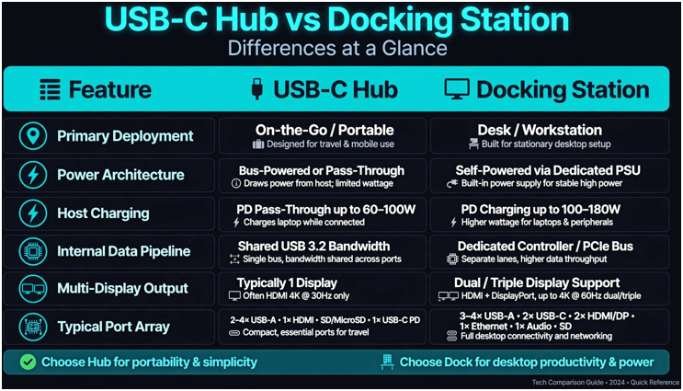
Choosing between these accessories requires looking at power distribution, display protocols, and internal bus speeds.
| Feature | USB-C Hub | Dedicated Docking Station |
| Primary Deployment | Mobile work, travel kits, temporary port expansion | Permanent desk setup, workstation replacement |
| Power Architecture | Bus-powered (draws 5V–20V) or passive pass-through | External AC-to-DC brick (120W to 240W wall supply) |
| Host System Charging | Consumes 7.5W–15W overhead from input charger | Delivers stable 85W to 140W+ directly to laptop |
| Internal Data Pipeline | Shared USB 3.2 Gen 1/Gen 2 (5 Gbps to 10 Gbps) | Thunderbolt 4 or USB4 with dedicated PCIe (40 Gbps) |
| Multi-Display Output | Shared DisplayPort Alt Mode (Often mirrors on macOS) | Discrete display controllers (Dual/Triple 4K @ 60Hz) |
| Typical Port Array | 1 HDMI, 2–3 USB-A, SD Card reader | Dual DP/HDMI, 2.5GbE LAN, Host TB4, Audio In/Out |
Power Architecture: Bus Power vs Independent AC Supply
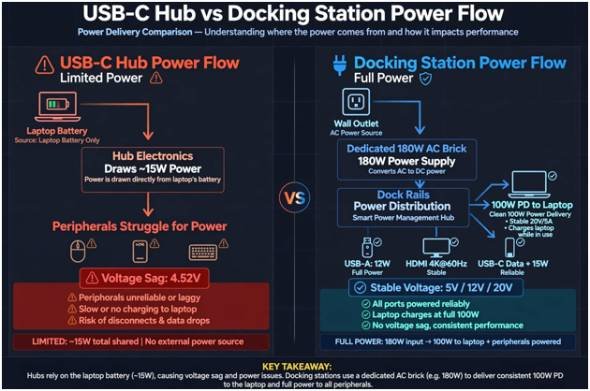
The foundational design divergence lies in power distribution. A standard USB-C hub acts as a parasite. It draws direct electrical current from the laptop motherboard to energize connected thumb drives, SD card controllers, and video conversion chips.
When you attach multiple accessories to a bus-powered hub, the 5-volt bus divides across every connected peripheral. In my tests with an inline USB multimeter, running an external mechanical drive alongside a webcam dropped rail voltages down to 4.52V. This voltage sag causes random peripheral disconnects during read/write spikes.
A docking station bypasses internal laptop voltage rails entirely. It relies on a dedicated external power brick plugged straight into a wall outlet. Docks regulate independent voltage rails for downstream ports while supplying continuous, high-wattage current compliant with the official USB-IF Power Delivery Specification.
USB-C Hub Power Flow:
[Laptop Battery] —> [Hub Electronics (draws ~15W)] —> [Peripherals struggle for power]
Docking Station Power Flow:
[Wall Outlet] —> [Dedicated 180W Brick] —> [Dock Rails] —> [Full Power to All Ports]
|
+—> [Clean 100W PD to Laptop]
The Truth Behind Pass-Through Charging Deficits
Many hubs advertise “100W Power Delivery Pass-Through.” This confuses users into thinking their laptop receives a full 100W charge.
The hub’s internal controller chips and active video converters require operating power. The hub intercepts the power input and reserves 10W to 15W for its own circuits, sending only 85W down the line. If your laptop requires 96W under full CPU load, a pass-through hub triggers battery drain even while plugged in.
Docking stations resolve this by delivering separate, dedicated wattage to your computer without skimming power off accessory lanes.
Video Routing and Bandwidth Constraints
Video transmission highlights a major technical distinction between standard hubs and high-speed docks.
DisplayPort Alt Mode vs PCIe Tunneling
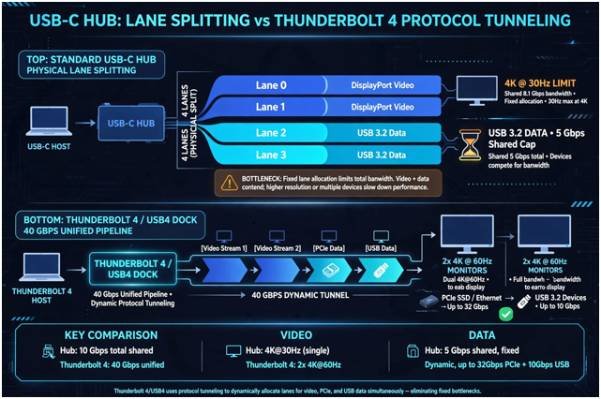
Standard hubs use DisplayPort Alternate Mode, established by the VESA DisplayPort Alt Mode Standard. A standard USB Type-C connector features four high-speed physical differential lanes.
- When a hub outputs 4K video at 60Hz over HDMI without compression, it consumes all four lanes for display data.
- This drops all remaining USB ports on the hub down to legacy USB 2.0 speeds (480 Mbps).
- To keep USB ports running at 5 Gbps, the hub splits the connector, reserving two lanes for video and two for data. This limits video bandwidth, forcing 4K displays down to an unworkable 30Hz refresh rate.
Docking stations built on Thunderbolt 4 or USB4 standards bypass this physical limitation. According to official Intel Thunderbolt 4 Technical Documentation, Thunderbolt utilizes packet-based protocol tunneling. It merges DisplayPort video packets, USB 3.2 data, and PCIe memory reads into a single 40 Gbps data stream.
Standard USB-C Hub (Physical Lane Splitting):
Lane 0 & 1: DisplayPort Video =============> 4K @ 30Hz Limit
Lane 2 & 3: USB 3.2 Data Lanes ============> 5 Gbps Shared Cap
Thunderbolt 4 / USB4 Dock (Protocol Tunneling):
40 Gbps Unified Pipeline: [ Video Stream 1 ][ Video Stream 2 ][ PCIe Data ][ USB Data ]
(Dynamically allocated based on live peripheral demand)
Bandwidth dynamically rebalances on demand, running two 4K screens at 60Hz alongside high-speed external drives without bandwidth degradation.
The macOS Multi-Stream Transport (MST) Bottleneck
A common multi-monitor headache stems from driver protocols. Windows supports DisplayPort Multi-Stream Transport (MST), letting a simple USB-C hub route different video streams across multiple monitors from one port.
macOS explicitly refuses to support MST. If you plug two monitors into a standard USB-C hub connected to a Mac, both external monitors show an identical mirrored image.
Bypassing this limitation on Mac systems requires a genuine Thunderbolt dock. Thunderbolt handles independent display streams natively at the transport layer, letting Apple Silicon machines drive distinct, extended displays across multiple screens.
Peripheral Performance and Storage Integrity
Fast storage demands dedicated bus routing. A portable USB-C hub runs over standard USB mass storage protocols, sharing a narrow pipe with your webcams, audio interfaces, and network traffic.
For critical workflows, relying on a shared-bandwidth hub introduces drive latency and bus bottlenecks. While creators often deliberate between external SSD vs. cloud storage for backups, unstable bus voltage remains an overlooked threat to local hardware.
Setup Audit: How to Pick the Right Hardware
Match your physical setup directly to your daily usage needs:
Do you travel regularly and work remotely?
|
+——————+——————+
| YES | NO
v v
[ Buy a USB-C Hub ] Do you need 2+ displays,
– Lightweight fast storage, & fixed LAN?
– Bus-powered |
– 1 external display +———-+———-+
| YES | NO
v v
[ Docking Station ] [ Premium USB-C Hub ]
– 40 Gbps pipeline – Multi-port desktop
– Wall-powered – Lower total cost
Invest in a USB-C Hub If:
- You carry your setup between offices, coffee shops, and client meetings.
- Your workflow relies on a single external display or an office conference projector.
- You only need access to a wireless mouse receiver, flash drives, and an SD card reader.
Invest in a Docking Station If:
- You want a true single-cable desk setup that charges your machine while running dual 4K monitors.
- You run high-speed external NVMe storage arrays alongside low-latency audio gear.
- You need fixed 2.5GbE wired network access and dedicated power routing.
Stop Overpaying for Unused Bandwidth
Do not spend $300 on an enterprise Thunderbolt dock if your daily routine only calls for a flash drive and an office projector. Similarly, avoid chaining three adapters to an underpowered travel hub and expecting stable multi-monitor performance. Audit your workflow, count your monitors, and match the peripheral standard to your desk.
Running high-drain NVMe drives on underpowered hubs can cause dirty unmounts, interrupting TRIM execution and damaging controller health. Stable power delivery helps extend the lifespan of an ssd by eliminating the read/write write-cache aborts common with unpowered USB splitters.
Frequently Asked Questions
1. Can a USB-C hub charge my laptop as fast as a docking station?
No, hubs siphon 7.5W to 15W off your charger for internal chips, while dedicated docks supply continuous full wattage straight from the wall.
2. Why do both of my monitors show the exact same image on a USB-C hub?
macOS does not support DisplayPort MST, forcing monitors on standard USB-C hubs to mirror unless you upgrade to a certified Thunderbolt dock.
3. Will a docking station damage my laptop battery if left plugged in 24/7?
Modern laptops feature integrated charge controllers that switch to direct AC power once the battery hits capacity, preventing overcharging risks.
4. Does a USB-C hub slow down my internet connection compared to a dock?
Yes, hubs share total bus bandwidth across video and data, which can throttle high-speed Ethernet controllers under heavy graphical loads.









2 comments on “USB C Hub Vs Docking Station Differences: Which Setup Wins?”