
Modern solid-state drives do not die from old age; they die from cumulative writes or sudden electrical damage. When I built my first NVMe test rig five years ago, I burned through a budget 500GB boot drive in under eighteen months by treating it like an old-school mechanical hard drive.
Learning how to extend the lifespan of an ssd requires understanding how NAND flash degrades and preventing the specific operating system habits that accelerate silent wear.
Flash memory relies on finite Program/Erase (P/E) cycles. Every write slightly degrades the silicon oxide layer insulating your data. With the right configuration, an everyday consumer SSD easily outlasts the computer hosting it.
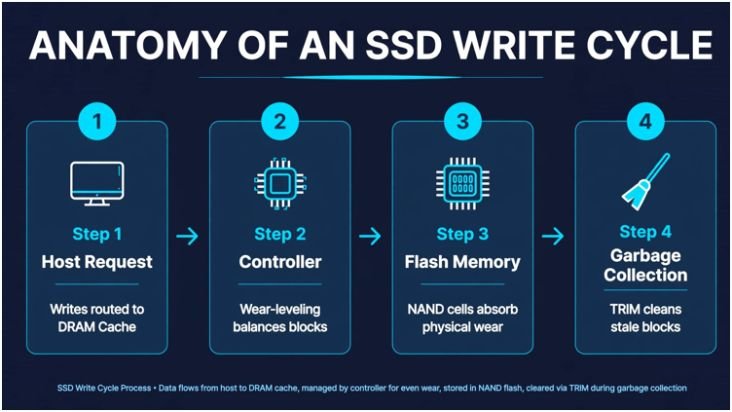
+———————————————————–+
| ANATOMY OF AN SSD WRITE CYCLE |
| |
| 1. Host Request –> Writes routed to DRAM Cache |
| 2. Controller –> Wear-leveling balances blocks |
| 3. Flash Memory –> NAND cells absorb physical wear |
| 4. Garbage Coll. –> TRIM cleans stale blocks |
+———————————————————–+
Understanding Flash Endurance and Write Cycles
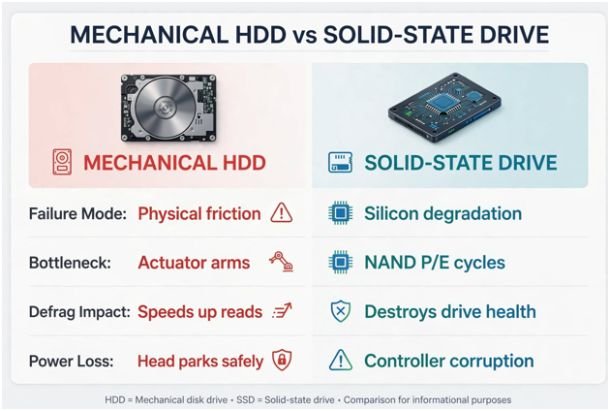
Traditional hard drives fail from mechanical friction, motor burnout, or head crashes. SSDs lack moving parts, shifting their point of failure entirely to solid-state physics.
+————————————————————-+
| MECHANICAL HDD vs SOLID-STATE DRIVE |
+————————————————————-+
| Failure Mode: Physical friction | Silicon degradation |
| Bottleneck: Actuator arms | NAND P/E cycles |
| Defrag Impact: Speeds up reads | Destroys drive health |
| Power Loss: Head parks safely | Controller corruption |
+————————————————————-+
Why P/E Cycles Matter More Than Power-On Hours
Manufacturers rate solid-state reliability using Terabytes Written (TBW) established by JEDEC Standards. This metric measures the total cumulative volume of data you can write to the drive before the memory cells lose their retention capabilities.
A 1TB TLC (Triple-Level Cell) drive typically carries a 600 TBW rating. If you write 30 gigabytes daily, hitting that limit takes more than 50 years. However, high write amplification—caused by filled drives or broken garbage collection—can multiply background writes tenfold, exhausting those cycles prematurely.
| NAND Flash Type | Bits Per Cell | Typical P/E Cycles | Relative Lifespan | Common Use Case |
| SLC | 1 | 50,000 – 100,000 | Highest | Industrial & Enterprise |
| MLC | 2 | 3,000 – 10,000 | Very High | High-End Workstations |
| TLC | 3 | 1,000 – 3,000 | Moderate / High | Mainstream Consumer SSDs |
| QLC | 4 | 100 – 1,000 | Low / Moderate | Budget Storage & Read-Heavy Drives |
Core OS Tweaks That Actually Reduce Wear
Modern operating systems handle flash storage well out of the box, but default configurations occasionally misfire after major system updates or storage migrations.
Verify TRIM Status Immediately
TRIM is an ATA/NVMe command that tells your SSD which data blocks are no longer considered in use, allowing the drive’s controller to wipe them in the background. Without TRIM, the drive must perform a slow, wear-heavy read-modify-write cycle every time you save new data.
To confirm TRIM operates correctly, open Command Prompt as Administrator and query the filesystem behavior via official Microsoft Support guidelines:
fsutil behavior query DisableDeleteNotify
- If the result returns 0, TRIM functions normally.
- If it returns 1, enable it immediately by executing:
fsutil behavior set DisableDeleteNotify 0
The Truth About Disabling Hibernation and Pagefiles
Online forums frequently tell users to disable Windows Hibernation (powercfg.exe /hibernate off) to prevent daily multi-gigabyte memory dumps. On a modern drive with hundreds of terabytes of endurance, hibernating once a day accounts for less than 1% of your annual rated writes.
Disabling hibernation also turns off Windows Fast Startup. Unless you run a tiny 128GB drive or operate under severe capacity limits, leave hibernation alone. Optimize your background processes instead of crippling your operating system features.
Just as travelers wonder whether does esim drain more battery than physical sim, tech users often worry about features that consume negligible resources compared to primary workloads. Efficiency comes from managing massive continuous tasks, not micromanaging standby features.
Drive Management and Thermal Protection

Hardware environment and available storage headroom dictate real-world SSD longevity far more than small software tweaks.
+————————————————————–+
| CAPACITY HEALTH ZONES |
| |
| [======================= ] [ ] |
| 0% 75% 80% 100% |
| |<— Safe Operating Zone —>| |<– Danger: High Wear –>|
+————————————————————–+
The 20% Unallocated Space Rule
Never fill an SSD past 80% to 85% of its total capacity. When a drive fills up, the integrated controller struggles to find clean blocks for incoming data. This triggers constant internal data shuffling, drastically increasing the write amplification factor (WAF).
I leave 15% to 20% of my drives unpartitioned during initial drive setup. This deliberate over-provisioning gives the controller a dedicated pool of empty blocks for wear leveling, bad block retirement, and background garbage collection.
| Drive Fill Level | Controller Behavior | Write Amplification | Impact on Lifespan |
| 0% – 70% | Optimal wear leveling | Baseline (Near 1.0) | Maximum lifespan |
| 71% – 85% | Active garbage collection | Moderate (1.2 – 1.5) | Normal expected lifespan |
| 86% – 95% | Aggressive cell shuffling | High (2.0 – 3.0) | Accelerated cell wear |
| 96% – 100% | Emergency block scavenging | Critical (> 4.0) | Severe degradation and throttling |
Heat Sinks: Protecting the Controller, Not the NAND
A persistent myth suggests keeping your entire SSD as cold as possible. Architectural teardowns from hardware outlets like AnandTech show that NAND flash cells actually prefer warm temperatures during write cycles; writing to cold flash increases cell stress.
The component that burns out from high heat is the controller ASIC. If your controller regularly exceeds 75°C under heavy loads, it throttles performance and degrades solder joints. Install an aluminum heatsink with a thermal pad that directly bridges the controller to the metal, keeping it under 65°C while allowing the flash chips to operate at their natural working temperature.
Routine Maintenance Versus Harmful Myths
Treating a solid-state drive like a mechanical hard drive destroys it. Here is how modern best practices differ from traditional habits:
| Routine Task | Mechanical HDD Practice | Solid-State Drive (SSD) Practice | Reason for Difference |
| Defragmentation | Run monthly | Never run | SSDs access all cells equally; defragging burns P/E cycles for zero gain. |
| Drive Sanitization | Multi-pass overwrites (DBAN) | Hardware Secure Erase / Crypto Erase | Multi-pass writes exhaust flash cycles; ATA Secure Erase resets voltage states instantly. |
| Power Protection | Surge protector | Uninterruptible Power Supply (UPS) | Power cuts corrupt SSD controllers and translation layers far more easily than read heads. |
| Firmware Updates | Rarely required | Install vendor updates | Patches fix garbage collection bugs, wear algorithms, and controller panic states. |
Much like preparing hardware setups when researching eSIM vs physical sim for international travel, proactive hardware planning avoids sudden system failures when you need reliability most.
Frequently Asked Questions
1. Does defragmenting an SSD ruin it?
Yes, traditional defragmentation causes thousands of unnecessary write cycles without offering any performance benefits to flash memory.
2. How much free space does an SSD need?
Keep 15% to 20% of your drive unallocated or free so the controller can execute wear leveling and background cleanup efficiently.
3. What causes an SSD to fail suddenly?
Sudden power interruptions, firmware crashes, and controller overheating kill drives far more often than worn-out NAND cells.
4. How do I check how much life my SSD has left?
Download a diagnostic tool like CrystalDiskInfo or your drive manufacturer’s utility to view your Total Host Writes and health percentage.
Stop Babying Your Drive, Start Monitoring It
Obsessively cutting system files and avoiding basic software installations will not save your SSD; smart architecture will. Check your drive’s health once a quarter using S.M.A.R.T. monitoring tools, keep your free space floating around 20%, ensure your controller stays cool under load, and let the drive handle the rest. Pick up an inexpensive UPS before you spend another minute disabling minor Windows features.









One comment on “How to Extend the Lifespan of an SSD: A Benchmarked Guide”