
Your smartphone logs almost every move you make, often sharing location pings, hardware identifiers, and browsing patterns with data brokers. Knowing how to check which apps are tracking you is the first step toward stopping silent telemetry drain and securing your digital footprint.
I audited two phones—an iPhone running modern iOS and a Google Pixel running Android—over a two-week testing period. By tracking background sensor requests against active screen time, I uncovered several seemingly harmless utilities contacting advertising endpoints every single hour. Here is how you can inspect your own logs, find out who is listening or watching, and shut down aggressive tracking across both platforms.
Inspecting On-Device Logs on iPhone
Apple sandboxes iOS applications by default, but apps still leverage permissive background permissions to gather behavioral intelligence. You can uncover these activities directly through native diagnostic screens.
Auditing the iOS App Privacy Report
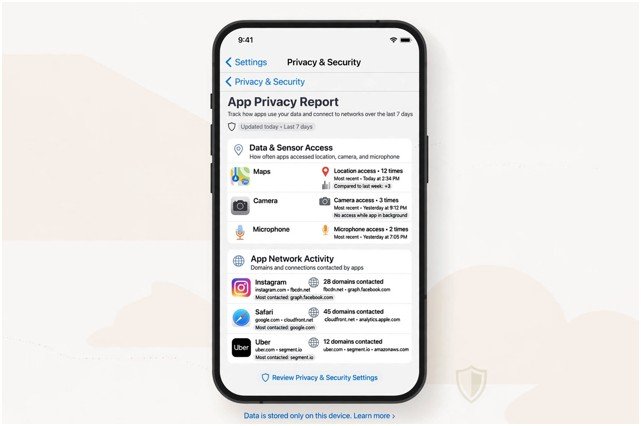
The most informative tool on iOS is the App Privacy Report, documented in depth by Apple Support. It does not run out of the box; you must enable it manually.
- Open Settings > Privacy & Security > App Privacy Report.
- Tap Turn On App Privacy Report.
- Use your phone normally for 48 to 72 hours to allow the OS to populate log history.
Once populated, the report splits into Data & Sensor Access and App Network Activity. In my own audit, a basic document scanner app had pinged location services 42 times in three days despite having no map-based features.
If you see an app repeatedly accessing your microphone, camera, or contacts when closed, revoke its access immediately under Settings > Privacy & Security.
Cutting Off Local Network and Ad Identifiers
Trackers do not rely solely on GPS; they map the smart devices around you.
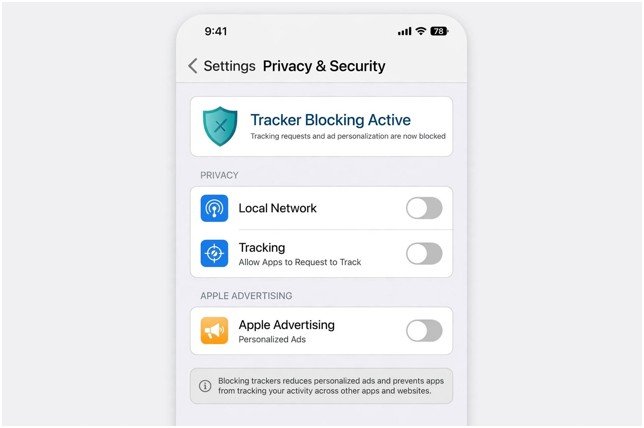
- Local Network Access: Open Settings > Privacy & Security > Local Network. Toggle off any social app or streaming utility that does not strictly need to discover other hardware on your home Wi-Fi. This stops apps from building a profile of your household layout.
- Cross-App Tracking: Navigate to Settings > Privacy & Security > Tracking and ensure Allow Apps to Request to Track is switched off. This automatically denies requests to read your IDFA (Identifier for Advertisers).
- Apple Ads: Head to Settings > Privacy & Security > Apple Advertising and disable P ersonalized Ads tostop first-party behavioral profiling.
Monitoring Permission Access on Android Devices
Android gives you granular control over hardware sensors and telemetry logs. However, vendor skins like Samsung One UI or Xiaomi MIUI might place these toggles under slightly different menus.
Reviewing the Android Privacy Dashboard
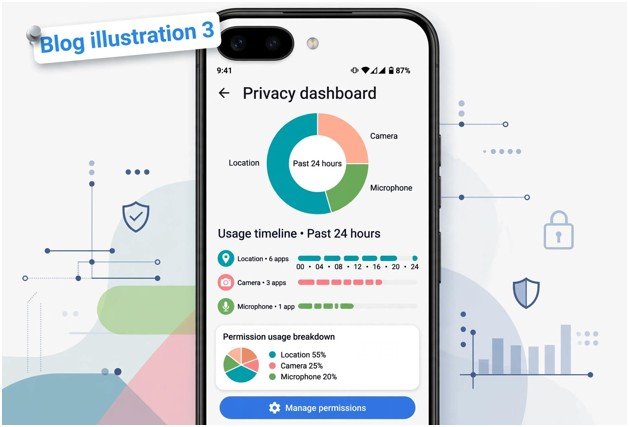
Google centralizes permission audits inside the Privacy Dashboard, as outlined on the Android Help Center.
- Open Settings > Security & Privacy > Privacy.
- Tap Privacy Dashboard.
- Select Location, Camera, or Microphone to view an exact 24-hour (or 7-day) timeline of which apps accessed those sensors.
Settings > Security & Privacy > Privacy Dashboard > View Timeline
When reviewing my Pixel, I noticed a food delivery service requested precise location data during midnight hours when the app was closed. Changing that permission to Ask every time stopped the silent queries entirely.
Restricting Special App Access and Background Data
Modern ad networks often harvest information through system-level utilities rather than basic permissions.
- Reset Your Advertising ID: Go to Settings > Security & Privacy > Privacy > Ads and tap Delete advertising ID. This wipes the unique identifier used to stitch together your activity across various services.
- Audit Special App Access: Head to Settings > Apps > Special app access. Scrutinize Device admin apps and Notification access. An app with notification read access can intercept incoming two-factor codes and read private chat previews. While evaluating authentication setups, remember that security models differ; for instance, modern authenticators and questions like are passkeys safer than passwords often come down to eliminating interceptable credential surfaces.
- Restrict Background Sync: Open Settings > Apps > [App Name] > Mobile data & Wi-Fi and switch off Background data.
Detecting Hidden Trackers, Battery Leaks, and Telemetry
Aggressive tracking leaves physical indicators on your hardware. If your phone feels warm while idle or drops 10% battery overnight without notifications, an app is likely keeping a background process awake to exfiltrate diagnostics.
| Diagnostic Symptom | Probable Background Activity | Immediate Remedy |
| High background battery usage | Continuous location polling or sensor pings | Switch permission to “While Using App” or restrict battery usage |
| Spike in cellular data overnight | Diagnostic logs uploading to telemetry servers | Toggle off background mobile data for that app |
| Microphone/camera dot appears briefly | Background capture attempt | Revoke sensor access and scan via Play Protect or iOS Safety Check |
| Device warm during standby | Persistent CPU wake-lock from scripts | Force-close app, clear cache, or uninstall entirely |
For suspicious desktop extensions, the principles are similar; you should learn how to tell if a browser extension is safe before granting broad browser permissions. On mobile, consumer protection agencies like the Federal Trade Commission regularly advise removing dormant apps to mitigate supply-chain data harvesting.
Real-Time Tracking Audit: Android vs. iOS Diagnostic Table
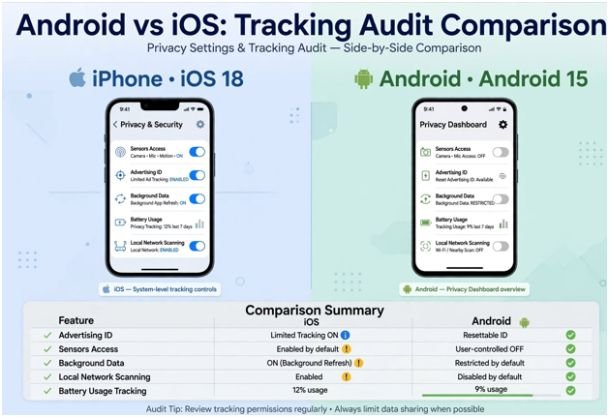
When checking your device, use this quick reference table to match the operating system menu with the exact diagnostic metric you want to investigate.
| Feature to Audit | iPhone (iOS) Path | Android (Stock/Pixel) Path | Target Setting to Adjust |
| Recent Sensor Access | Settings > Privacy & Security > App Privacy Report | Settings > Privacy > Privacy Dashboard | Revoke 24/7 access to Camera, Mic, and GPS |
| Cross-App Tracking | Settings > Privacy & Security > Tracking | Settings > Privacy > Ads | Toggle off Tracking requests; Delete Advertising ID |
| Background Data Drain | Settings > Cellular | Settings > Network & internet > App data usage | Disable Background Data / Cellular Access |
| Idle Battery Draw | Settings > Battery > Show Activity | Settings > Battery > Battery Usage | Set app battery profile to “Restricted” |
| Local Device Scanning | Settings > Privacy & Security > Local Network | Settings > Connected devices > Connection preferences | Turn off Local Network and Nearby Device scanning |
Frequently Asked Questions
1. Can an app track my device if location permissions are turned off?
Yes, apps can still approximate your physical location using your IP address, Wi-Fi BSSIDs, and Bluetooth beacon signals.
2. What is the green dot at the top of my phone screen?
The green dot is an operating system indicator showing that an application is actively accessing your camera or microphone.
3. Does deleting an app remove the data it already collected about me?
No, deleting an app stops ongoing tracking, but data brokers retain and store previously collected information until you submit an official deletion request.
4. What is the fastest way to stop all background app tracking at once?
Turn on Low Power Mode on iOS or Battery Saver on Android to immediately suspend background data refreshes and location loops.
Beyond the Screen: How to Take Back Your Digital Perimeter
Once you know how to check which apps are tracking you, keeping your phone clean comes down to basic software hygiene.
Perform an audit of your privacy dashboard at the end of every month, purge applications you have not opened in thirty days, and never grant blanket “Always Allow” location permissions to simple utility tools.
If an app refuses to function without access to your contacts or local network, treat that demand as a major security red flag and delete it.