
Few things frustrate a modern household faster than an automation that fails without warning. I spent months watching smart plugs, sensors, and cameras vanish into “offline” purgatory right when I needed them most.
If you want to know why do smart devices keep disconnecting from wifi, the culprit is rarely a broken gadget or an internet outage. It almost always stems from a silent mismatch between low-cost IoT radio chips and aggressive modern router configurations.
Once your smart fleet grows past a dozen endpoints, basic home networking rules no longer hold up.
The Real Culprits Behind Vanishing Smart Devices
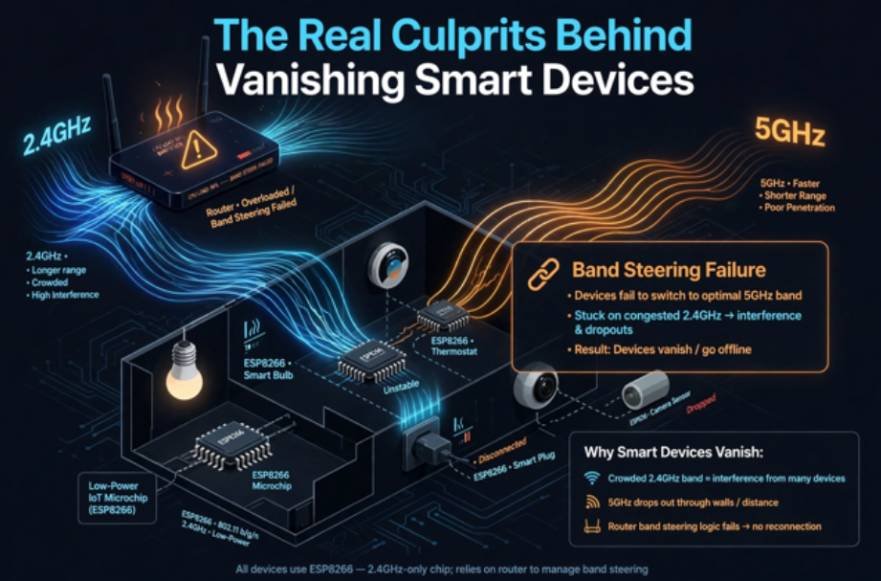
A reliable smart home requires clean local packet transmission. When hardware drops offline, it is reacting to network instability, packet collisions, or mismanaged leases.
Low-Power IoT Microcontrollers and Aggressive Power-Save Modes
The vast majority of smart plugs and ambient sensors run on inexpensive microchips like the ESP8266 or ESP32. To minimize power consumption and heat, these tiny silicon modules switch their Wi-Fi radios into a deep-sleep cycle between transmissions.
Many consumer routers fail to handle this behavior correctly. If a device stops polling packets, standard provider modems assume the client disconnected. During the subsequent 802.11 handshake renewal, the chip fails to re-authenticate quickly enough, leaving your device permanently stranded until a manual power cycle forces a fresh boot.
Band Steering and Single-SSID Failures
Modern dual-band routers market “Smart Connect” or unified band steering as a premium feature. Under this architecture, the 2.4 GHz and 5 GHz radios share an identical network name (SSID). High-bandwidth devices like laptops migrate back and forth based on signal strength.
However, almost all entry-level smart devices lack a 5 GHz radio entirely. When a router detects a strong local signal, its band-steering software tries to force the client toward the higher frequency. The IoT chip cannot interpret this request. The router cuts the 2.4 GHz connection to encourage the jump, but the device simply drops offline, unable to complete the handshake.
The 2.4 GHz Spectrum Trap and Co-Channel Congestion
The 2.4 GHz frequency provides superior penetration through drywall and brick, but its spectrum is severely crowded. According to technical documentation compiled by the FCC Office of Engineering and Technology, standard consumer devices compete across this band with microwave ovens, legacy Bluetooth links, and neighboring Wi-Fi access points.
When routers run on default settings, they auto-select 40 MHz channel widths to advertise higher theoretical throughput. In dense suburbs or apartment complexes, a 40 MHz channel width overlaps with almost the entire available spectrum. The resulting RF noise leads to massive packet loss. When an IoT device misses consecutive beacon frames from the access point, it initiates a disconnection routine.
Client Limit Exhaustion on ISP Gateways
Internet service provider (ISP) combo router-modems possess surprisingly limited system memory (RAM). Most standard ISP units struggle to manage the concurrent ARP tables and DHCP bindings required for more than 25 to 30 active IP clients.
When your smart home ecosystem crosses that threshold, the router does not power down. Instead, its internal connection table fills up, causing it to discard the oldest or least active clients. Cheap sensors that send data only once an hour get booted first to preserve memory for your streaming TV or desktop computer.
Technical Diagnostic Comparison: Symptoms vs. Solutions
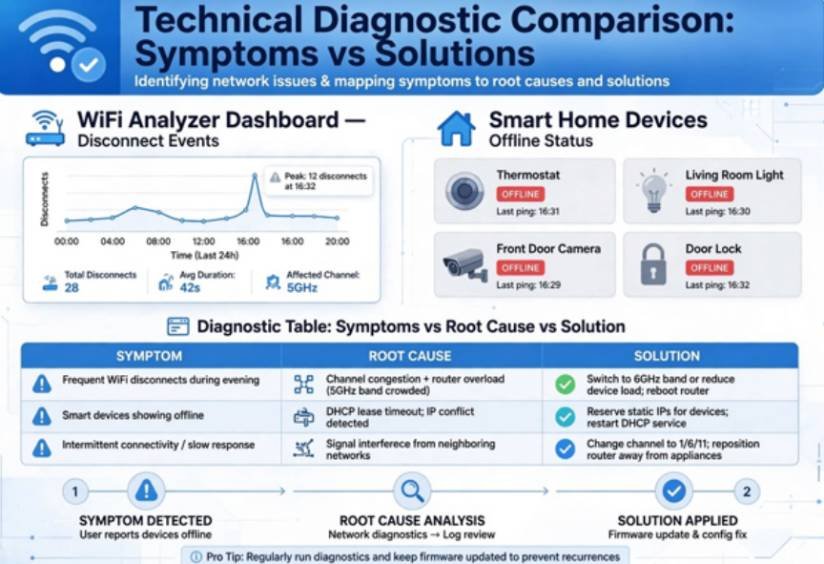
I tracked disconnect events across my own network over three weeks using a Wi-Fi analyzer. Isolating the core symptoms reveals which networking layer has actually failed:
| Observed Symptom | Primary Failure Layer | Root Cause | Permanent Network Fix |
| Drops only when running the microwave | Physical RF / Interference | Severe 2.4 GHz band pollution and overlapping channel width | Switch channel to 1, 6, or 11; drop width to 20 MHz |
| Fails specifically during setup or reboots | Layer 2 / MAC Protocol | Router trying to force a 2.4 GHz device to the 5 GHz band | Separate network SSIDs or disable band steering |
| Disappears after 24 to 48 hours of normal operation | Layer 3 / Network (IP) | Router lease renewal failure during low-power chip sleep | Assign a permanent static DHCP reservation |
| Random nodes drop when guests connect phones | Gateway Hardware Limit | Saturated connection table / insufficient router RAM | Upgrade to a mesh backhaul or run a dedicated IoT access point |
| Exterior cameras cut out during evening hours | Signal-to-Noise (SNR) | Borderline RSSI value degraded by neighbor network traffic | Relocate nodes closer or build an isolated access point |
Advanced Tweaks That Restored My Network’s Stability
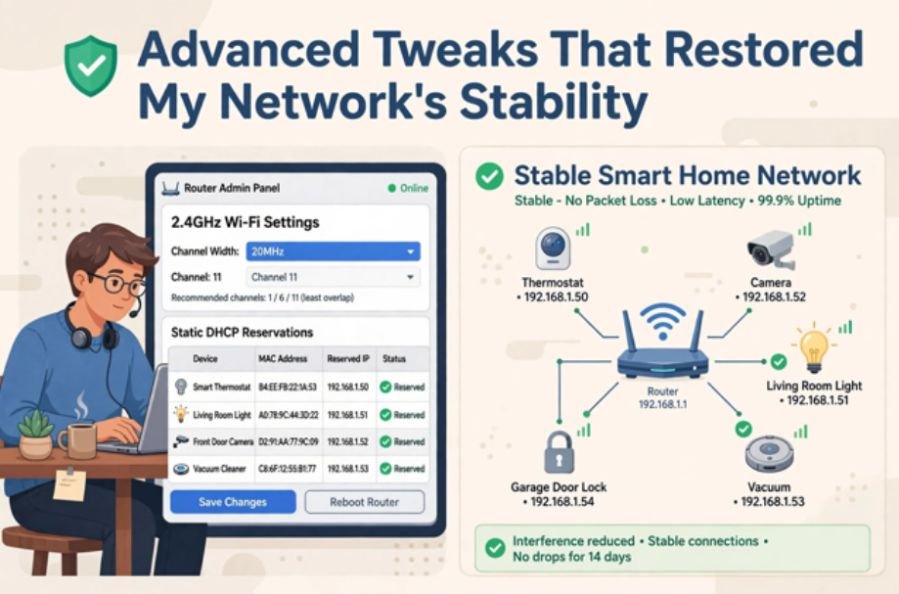
Eliminating random drops requires adjusting how your access point manages low-bandwidth hardware.
Lock 2.4 GHz Width to 20 MHz
Access your router’s administrative dashboard and navigate to your 2.4 GHz wireless settings. Change the channel width setting from “Auto” or “40 MHz” directly to 20 MHz.
By restricting the channel width to 20 MHz, you narrow the spectrum footprint of your network. This simple change avoids adjacent-channel bleeding and significantly lowers the local noise floor.
Furthermore, following guidelines from Apple’s recommended Wi-Fi settings, you should manually lock the transmission frequency to non-overlapping channels: 1, 6, or 11. Never leave channel selection set to “Auto.”
Reserve Static DHCP Leases
Dynamic host configurations invite addressing conflicts. Whenever an ISP router restarts or renews its subnet lease, it may try to assign an in-use IP address to a newly joined client, knocking an existing smart switch offline.
Log into your local DHCP settings and assign a reserved, static IP address to every stationary smart device based on its MAC address. Locking your smart plugs, light switches, and hub controllers into permanent addresses prevents IP collision errors and ensures the router always preserves their table entries during low-power sleep states.
Transition High-Risk Nodes Off Raw Wi-Fi
If your smart ecosystem continues expanding, Wi-Fi itself becomes the wrong transport layer for simple binary devices like contact sensors, smart plugs, and wall switches. Wireless access points were never designed to hold continuous associations with 80 individual clients that transmit 50 bytes of data twice a day.
When planning future expansions, assess your device architecture. Readers often ask: can matter devices work without internet? Yes, local protocol topologies keep automations running directly inside your home walls even during ISP outages.
For low-power components, comparing matter vs thread for smart home devices reveals that a dedicated Thread mesh offloads wireless congestion from your primary router while eliminating Wi-Fi band competition altogether, an approach backed by IEEE standards on low-rate wireless PANs.
Frequently Asked Questions
1. Why do smart plugs disconnect while my phone stays connected?
Smart plugs use weak, low-power microcontrollers without 5 GHz support, making them vulnerable to signal drops that modern smartphone antennas ignore.
2. Does changing my router fix smart home disconnects?
Yes, replacing an entry-level ISP gateway with a tri-band router or dedicated mesh system expands memory capacity for dozens of simultaneous connections.
3. Should I keep 2.4 GHz and 5 GHz networks combined?
No, keeping bands separated into distinct network names prevents routers from dropping smart devices during automatic band-steering attempts.
4. Does a static IP stop smart devices from going offline?
Yes, reserving static IP addresses prevents the router from releasing your device’s address lease while the chip is in sleep mode.
The Final Word
Smart devices should run silently in the background, not demand regular power cycles. Take twenty minutes tonight to log into your router console: split your network names, drop your 2.4 GHz radio width to 20 MHz, and lock your primary nodes into reserved DHCP leases. Once you clear away the packet collisions and lease errors, your automations will execute reliably every time.








3 comments on “Why Do Smart Devices Keep Disconnecting From WiFi? How I Fixed My Setup”